Google reviews
Google Review QR Code: a practical setup guide for businesses
How to create a clear QR review journey, place it at the right moment and keep every invitation fair for customers.

A Google review QR code can remove friction at the moment a customer wants to share an experience. The code itself is only the start: the destination, wording, placement and follow-up process determine whether the journey is helpful, trustworthy and easy to repeat.
01
Start with the right destination
A QR code should lead directly to the public review flow for the intended business profile. Before printing it, open the destination on a phone and confirm that it refers to the correct location, not a search result, old branch or personal account.
Keep one documented source of truth for each location. This makes it easier to replace a link when a business moves, changes its public name or adds another branch.
- Open the destination on a real phone
- Confirm the exact business location
- Record who owns and checks the link
02
Use neutral invitation language
The best request is an invitation to share an honest experience. It should not promise a benefit for a positive rating or suggest a particular number of stars. Every customer should see the same review option.
A concise message such as “Would you like to share your experience?” keeps the interaction clear. If support is needed, offer it independently instead of using feedback to decide who may reach the public review page.
- Invite an honest experience
- Do not request a specific rating
- Keep support separate from the review link
03
Place the code where the experience is complete
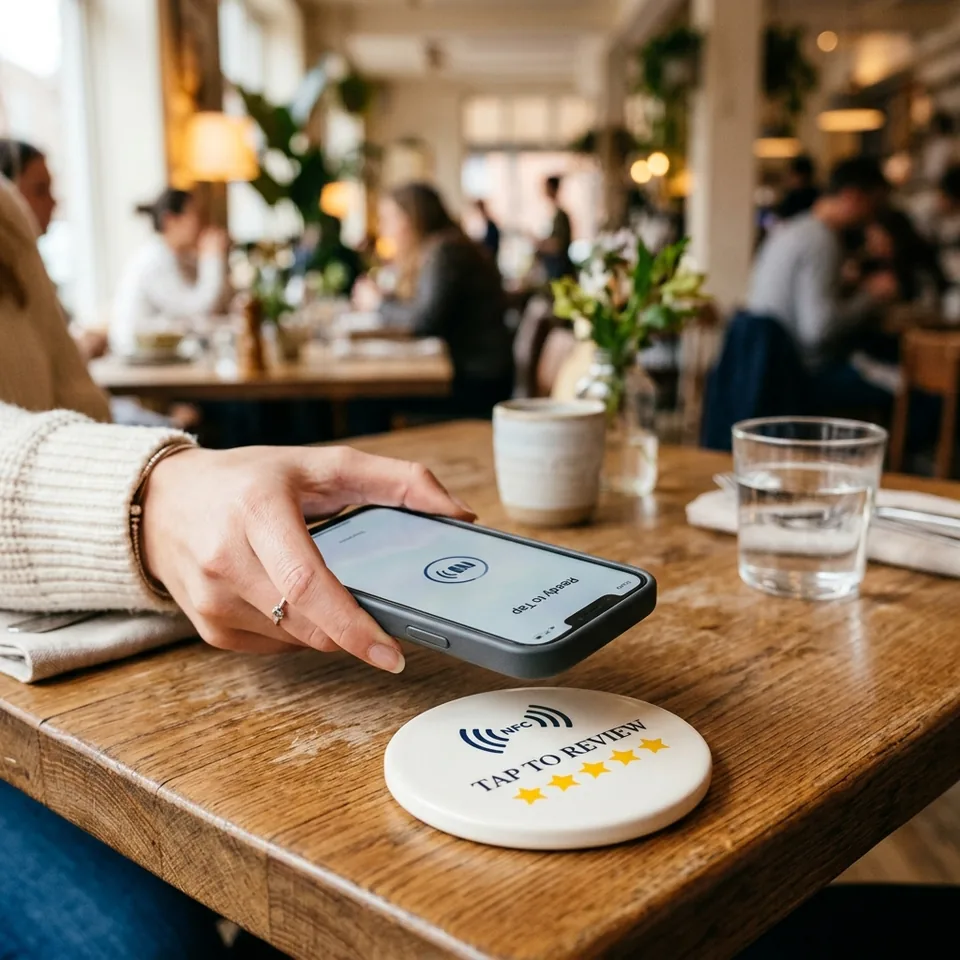
Timing matters more than decoration. A code at the checkout, reception desk, table or service counter works best when the customer has finished the relevant part of the visit and has a few unhurried seconds.
Use a stable, visible surface and leave enough contrast around the code. Staff should be able to point to the same touchpoint without explaining a different process each time.
- Choose an end-of-service moment
- Keep the code visible and unobstructed
- Standardise placement across the team
04
Test scanning and the customer path
Test with more than one phone and camera app, including after any print run or design update. The customer path should work over mobile data, without requiring an app download or a staff member to intervene.
A QR code should be an option, not the only way to communicate. Keep a visible support route and consider a short human-readable alternative for customers who cannot or do not want to scan.
- Test different phones and networks
- Check the path after every change
- Provide an accessible alternative
05
Turn the touchpoint into a maintained process
Review requests are operational touchpoints, not a one-time campaign. Assign ownership for link checks, damaged materials, staff guidance and responses to new reviews. A simple monthly review avoids silent failures.
Measure whether the journey is available and consistently offered, then use recurring feedback themes to improve the customer experience. The goal is not to pressure customers; it is to make an honest response easy when they choose to give one.
- Assign a process owner
- Check printed materials regularly
- Use themes to improve service
06
Create and test your Google review QR code
Use the review link belonging to the business, not a Google search result or an internal panel address. A QR code stores a destination; it cannot authorize Business Profile access or automatically publish a customer review.
- 1.Sign in to the Google account managing the verified business. Select the correct Business Profile, open Read reviews and choose Get more reviews. Copy the review link Google provides. Menu wording can vary by interface.
- 2.Open that link in a private browser window. Confirm the business name and location before generating or printing anything. If Google requests a customer sign-in, that is separate from your business account.
- 3.For a managed Review Pilot product, activate it in your panel and assign the correct business. Use the product’s permanent QR address rather than replacing it with an untracked direct link; changing the target later should not require a reprint.
- 4.Print a high-contrast code with a clear border. Do not crop its white quiet zone or place text over the modules. Test the finished print from the normal reading distance rather than relying on the digital preview.
- 5.Test with the camera on both an iPhone and an Android phone, on mobile data and Wi-Fi. Confirm that the correct destination opens and that the invitation remains neutral for every customer.
- 6.Keep a setup record: location, product identifier, target link, placement and last test date. Retest after changing the profile or moving the product. A successful scan verifies the journey, not a new public review.
Sources
Putting it into practice
A well-run Google review QR code journey is simple for the customer and disciplined for the business: one accurate destination, one neutral invitation and regular quality checks. That is a much stronger foundation than chasing a short-term rating spike.